Find the right flight.
Search airports, crew, aircraft, registrations and flight numbers. Swipe naturally between logbook pages.
 FlightTimeLOGBOOK
FLIGHTTIME FOR iPHONE
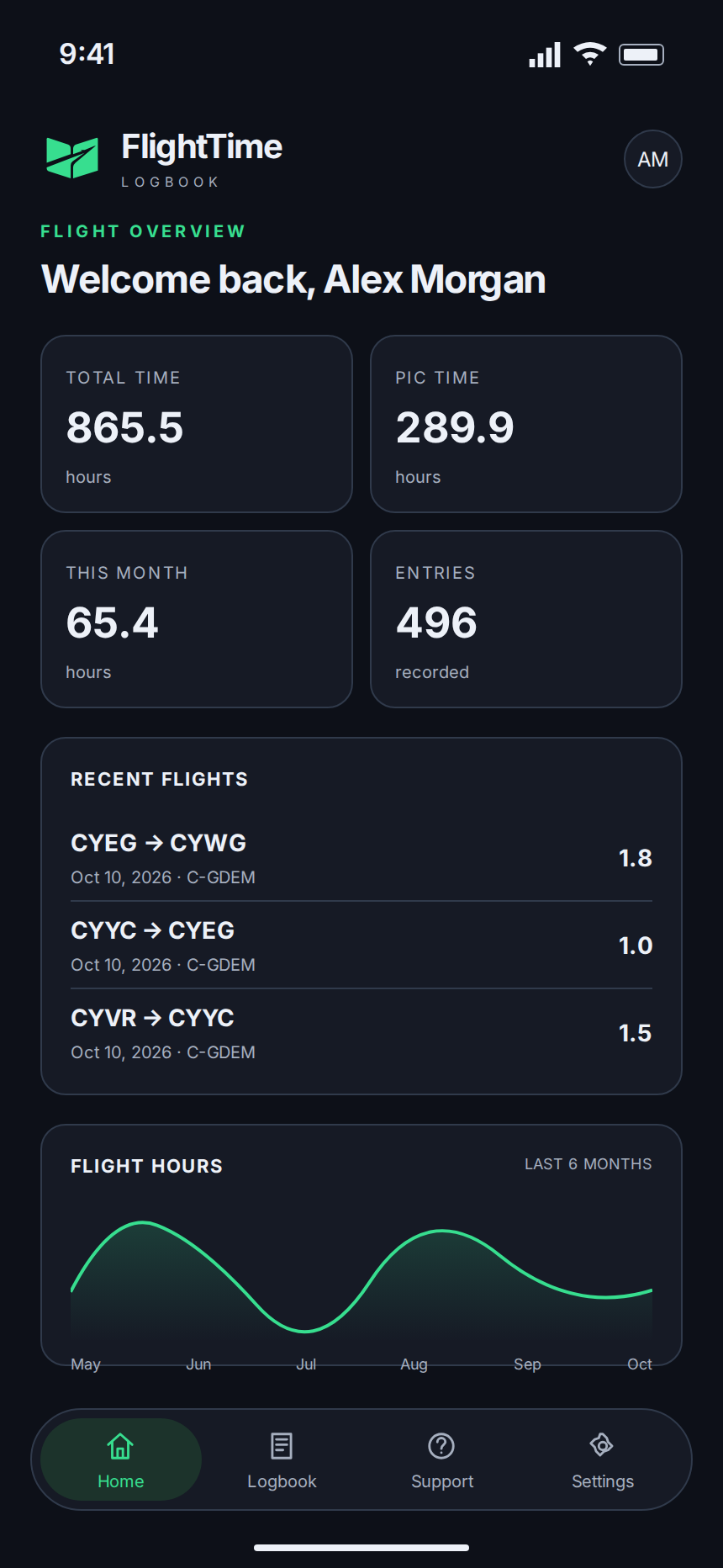
The same logbook, a smaller screen. Find a flight, check your hours and keep your record up to date wherever the next leg takes you.
For current iPhone installation instructions, contact support.
MADE FOR THE SMALL SCREEN
Same flight detail you rely on at your desk.
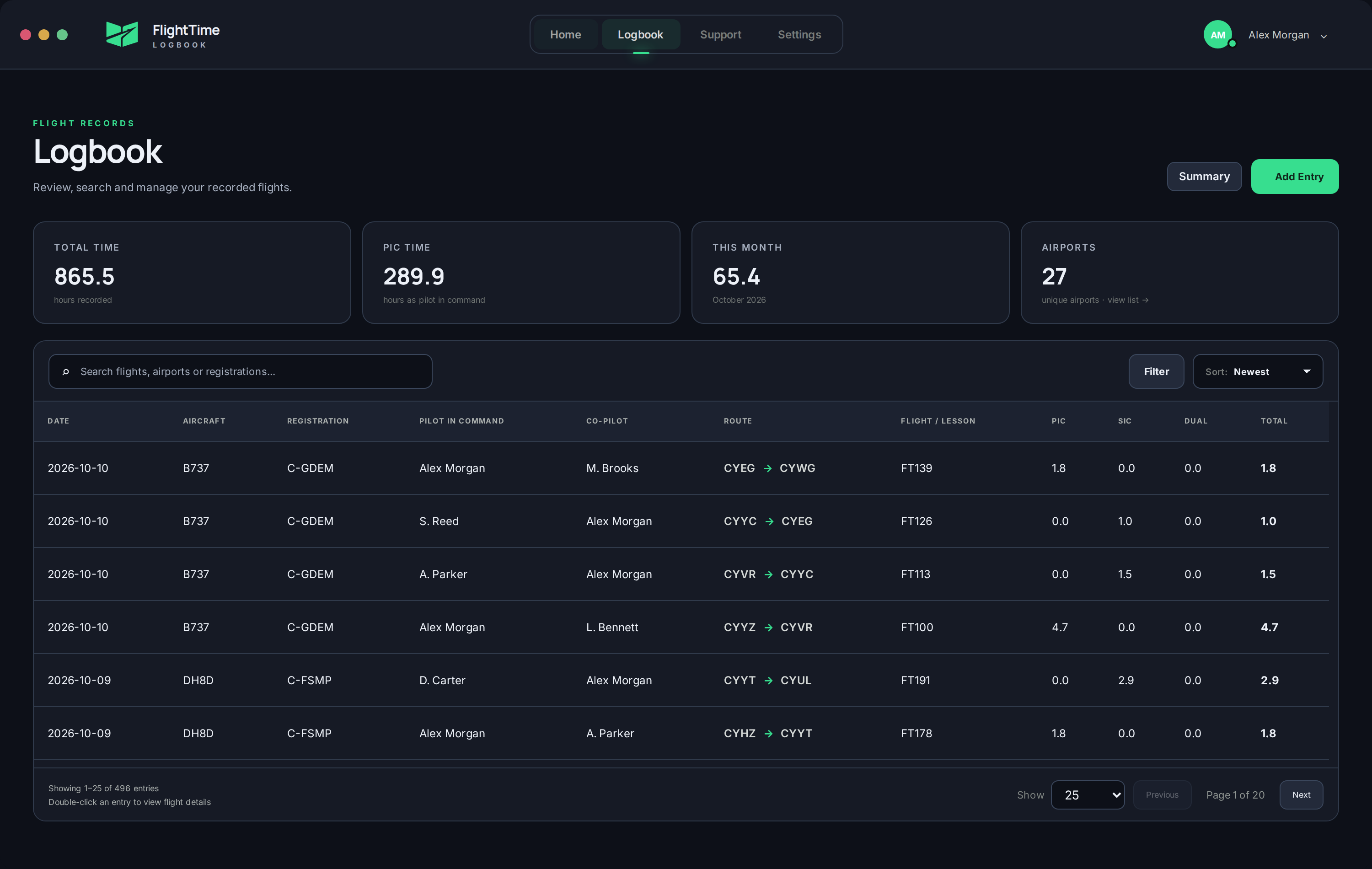
Search airports, crew, aircraft, registrations and flight numbers. Swipe naturally between logbook pages.
Check PIC, SIC and Dual time, day/night summaries and your airport history. Open records that need review.
After the first sync, enable editing and uploads to add flights and make corrections from your phone.
ONE ACCOUNT. A CONNECTED RECORD.
Your airline report becomes a reviewed desktop entry. Cloud sync brings it to the same account on iPhone.
Use the username or email and password from your FlightTime account. Your connected licence is checked automatically.
The first phone sync downloads your existing records. Check the flights and totals before switching on editing and uploads.
Sync with a connection to exchange changes. Each device keeps a local copy; keep desktop exports and backups too.
Airline reports, CSV and Excel imports, routine CSV exports and logbook backups are desktop features.
Browse, search, view totals and edit your synced records. During licence recovery, the phone also offers local export controls.
A FEW THINGS TO KNOW
No. Use the same FlightTime account and connected licence. Device limits still apply; your dashboard shows your licence’s allowance.
No. Import airline reports and spreadsheets on Windows or macOS, review them, then sync the entries to iPhone.
Yes, once editing and uploads are enabled and your licence permits editing. Sync the changes when you are connected. Your computer can receive them on its next successful sync.
Contact FlightTime support for current installation instructions and help connecting your logbook.
Begin on desktop. Bring your flying with you.